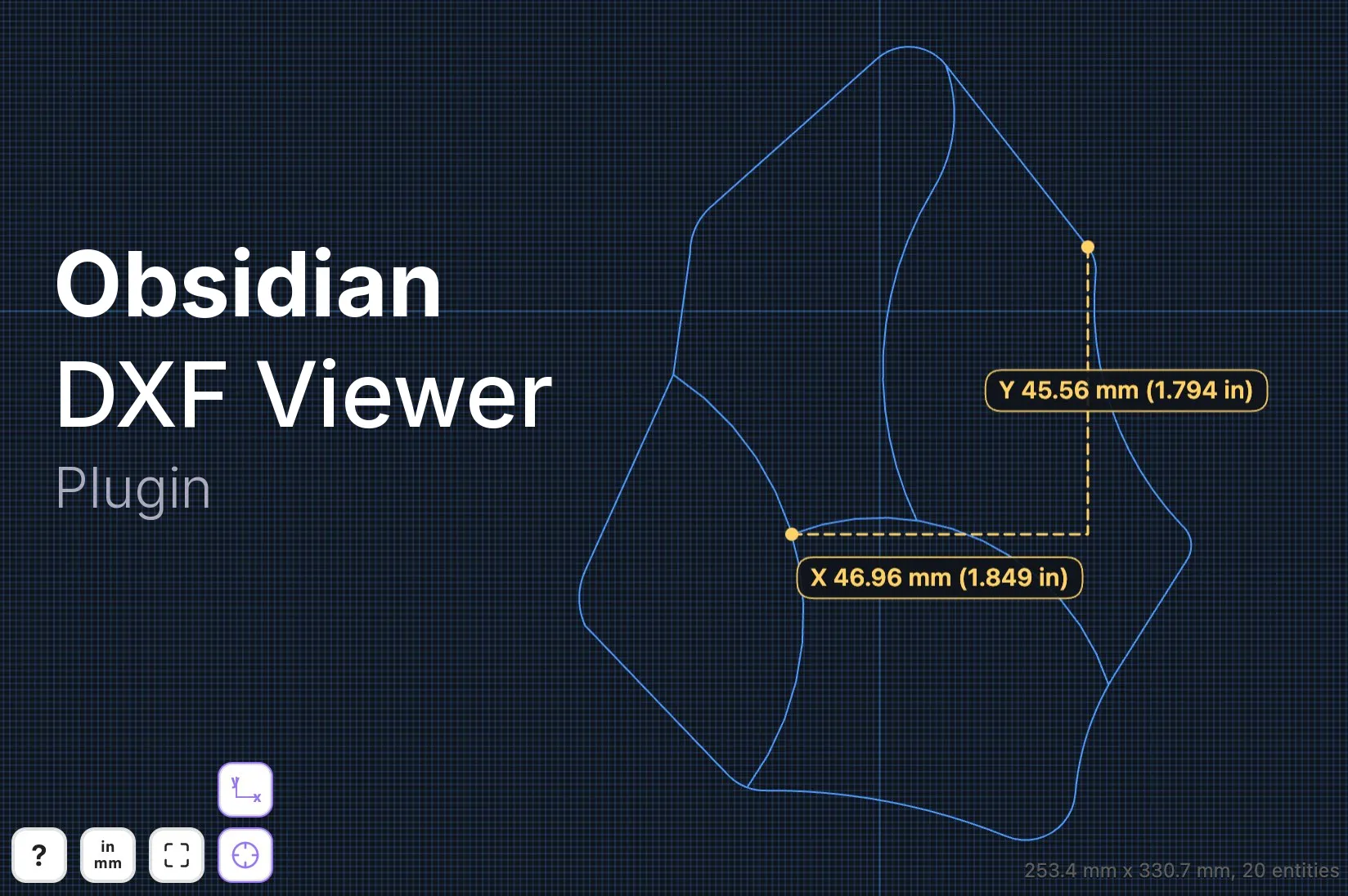
Install DXF Viewer from the Obsidian community plugin directory →
I keep a lot of reference drawings alongside my notes, but opening a DXF file used to mean leaving Obsidian and reaching for another app. That felt a little silly when I just wanted to check a measurement, so I made DXF Viewer to keep that part of the workflow in one place: open a drawing, take a measurement, and get back to the note I was working on.
The plugin opens .dxf files in their own Obsidian view and can also render them right inside a note. I especially like using ![[drawing.dxf]] in reading mode to keep a drawing next to the project notes, instructions, or decisions that give it context.
See it in action
A few useful details
I wanted it to have the small interactions that make a drawing useful rather than just visible. Pan around with a trackpad or mouse, zoom in on a detail, and use the zoom-all control to get oriented again. Gridlines, canvas colors, and drawing-line colors are adjustable too, which makes a drawing easier to read the way I want.
The measurement tool lets me click vertices or curve centers to find a distance, including separate X and Y components. Clicking a circle or arc measures its diameter. The viewer reads unit information from the DXF when it is available, and I can override it or show metric and imperial measurements together when I need to compare them.
A small Obsidian-native tool
The first release is desktop-only and keeps inline drawing embeds focused on reading mode. That is deliberate: I wanted a clean way to inspect the CAD files already in a vault, not a full CAD program inside Obsidian.
If you use Obsidian to collect project notes, part drawings, or fabrication references, you can find the plugin on the official Obsidian plugin page. The source and release files are available in the repository linked above.