I’ve been building more of my own software lately, usually starting with a small problem I want to solve for myself. One of the first was Dual N-Back, a memory-training app I made for Mac and later brought to iOS.
As soon as there were two versions, I ran into a very normal problem: how do I keep statistics in sync between devices? I considered QR codes and a more traditional cloud-sync system, but I quickly ruled out QR codes. I didn’t love the idea of taking a photo of my Mac (or holding up my phone to my Mac camera), and QR codes are pretty limiting in the data they can contain, only a few thousand characters with a very dense image. The cloud sync system makes the most sense, but when I started dabbling in making apps for myself I decided to start out without paying the $99/year to be an Apple developer, which is what unlocks iCloud syncing. What I really needed was already built into my devices: copy and paste.
Apple calls the copy-paste feature between devices Universal Clipboard, one part of its broader Continuity system. Copy something on an iPhone or Mac and, if the other device is nearby, it can be pasted wirelessly. It’s simple, usually happens within a few seconds, and can support many thousands of characters.
Sync without a server
In Dual N-Back, I added two buttons: Copy Stats and Paste Stats. The app turns my session history into a small package of text, puts it on the clipboard, and merges it into the other device. Each session has its own ID, so copying the same history twice doesn’t create duplicates.
It isn’t invisible, always-on syncing like we’re used to in many apps, but for a personal tool that I’m still testing and building, I actually like it. I know exactly when data is moving, and I don’t need to run a server or create a paid account.
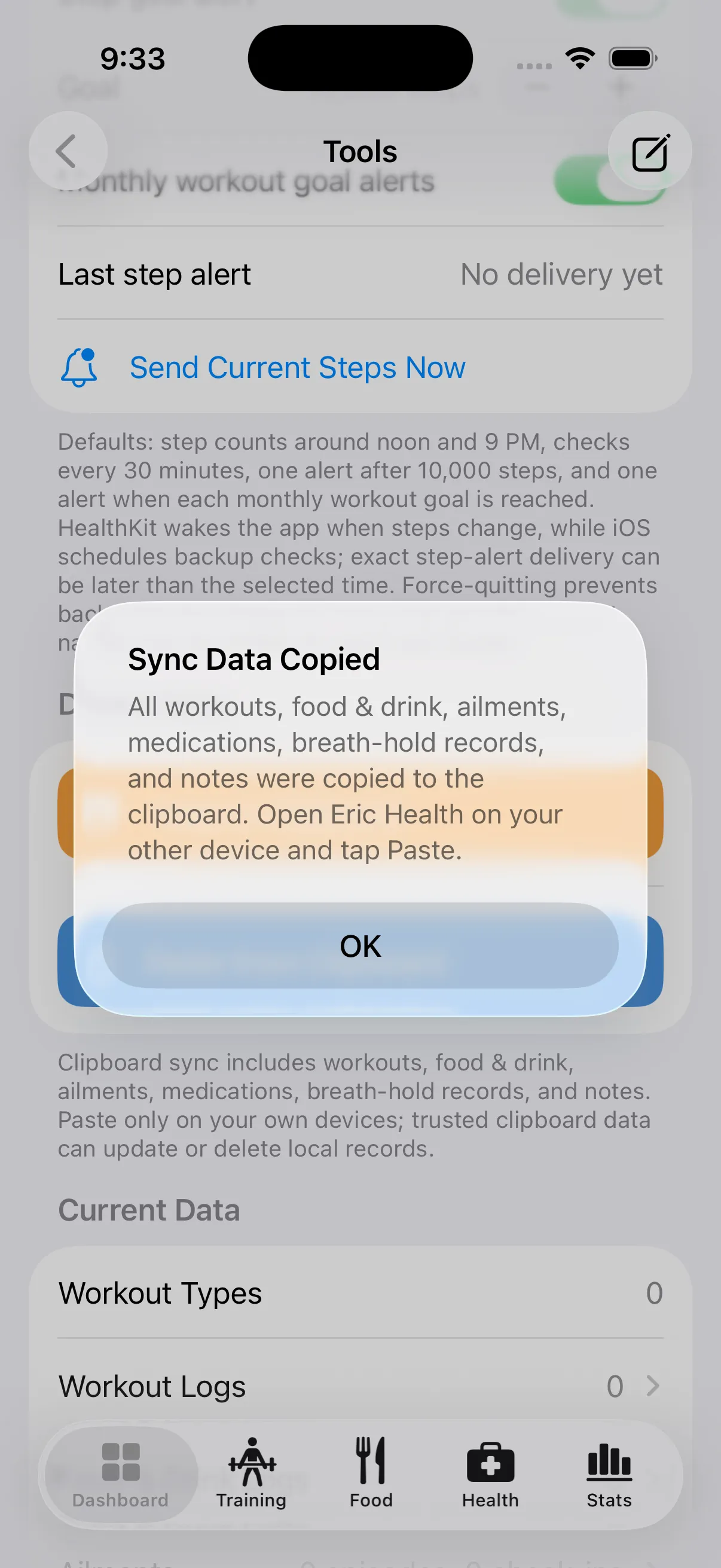
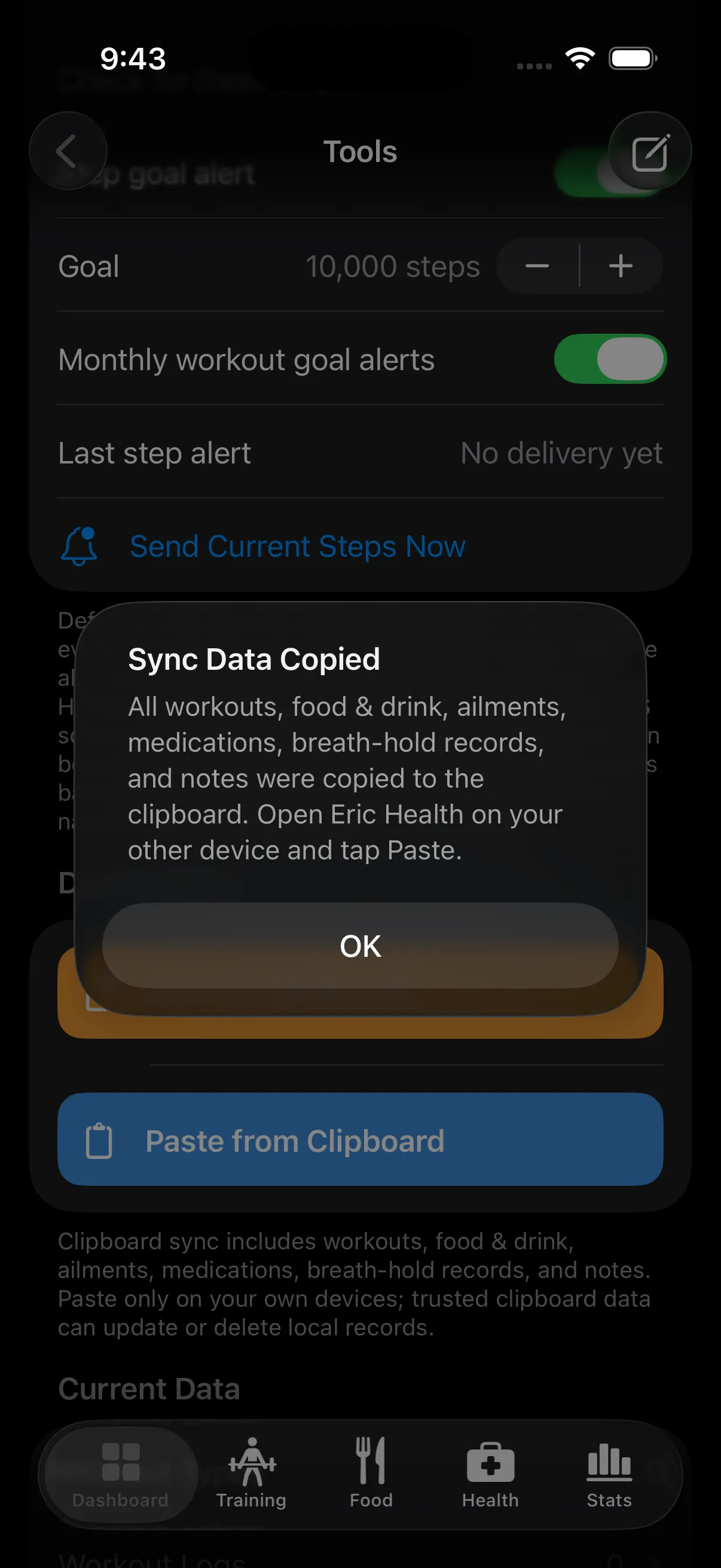
I took the same idea further in Eric Health, my personal health tracking app that began as a way to log and display workouts but has grown into much more (maybe I’ll write about it in more detail someday). Its clipboard package can include workouts, meal logs, medications, ailments, and other health data. I can make changes on either my Mac or iPhone, then copy everything to the other. Before anything is applied, the receiving app shows what will be added, updated, or deleted.
That preview is important. Copy and paste may feel casual, but replacing a clipboard full of text can still change a lot of data.
A better feedback loop
More recently, I realized the clipboard could help make the apps themselves better.
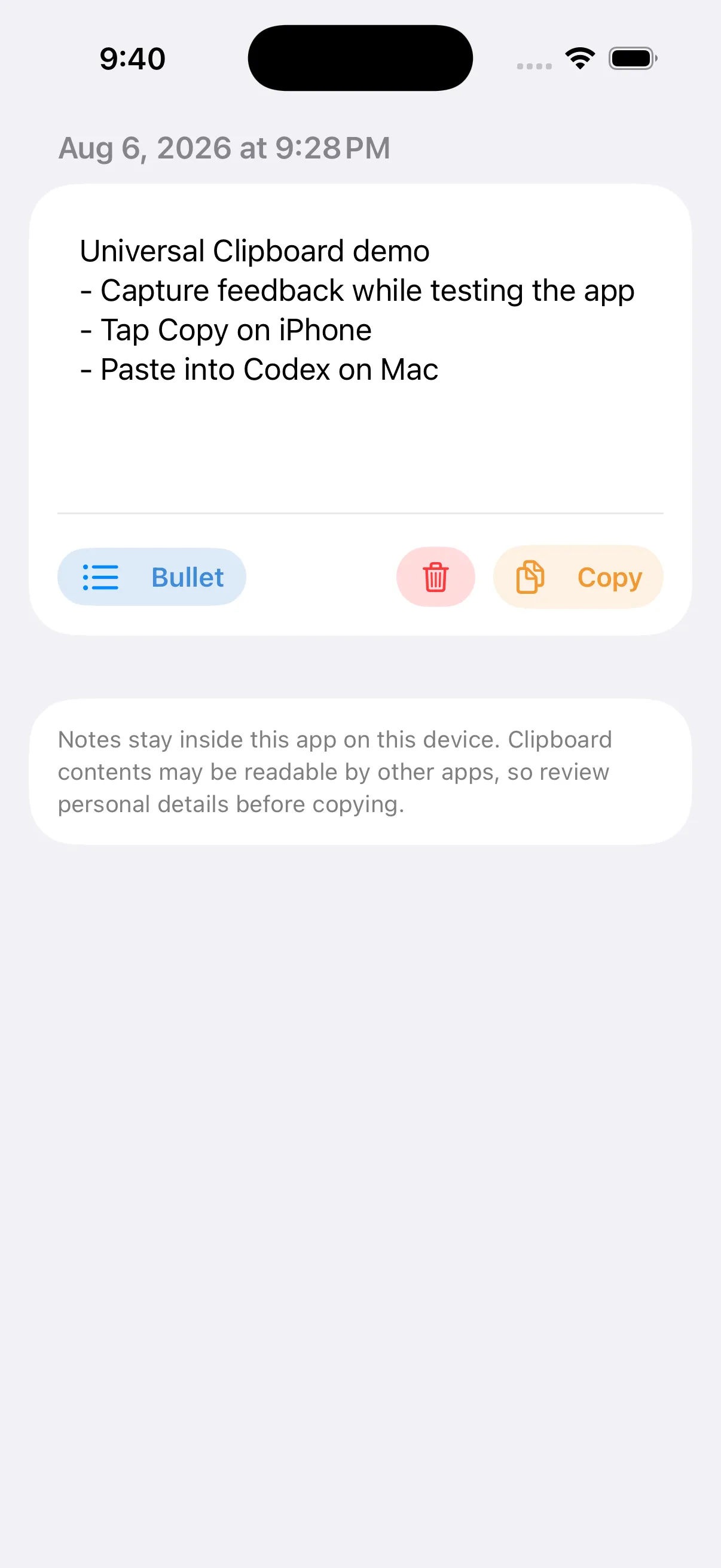
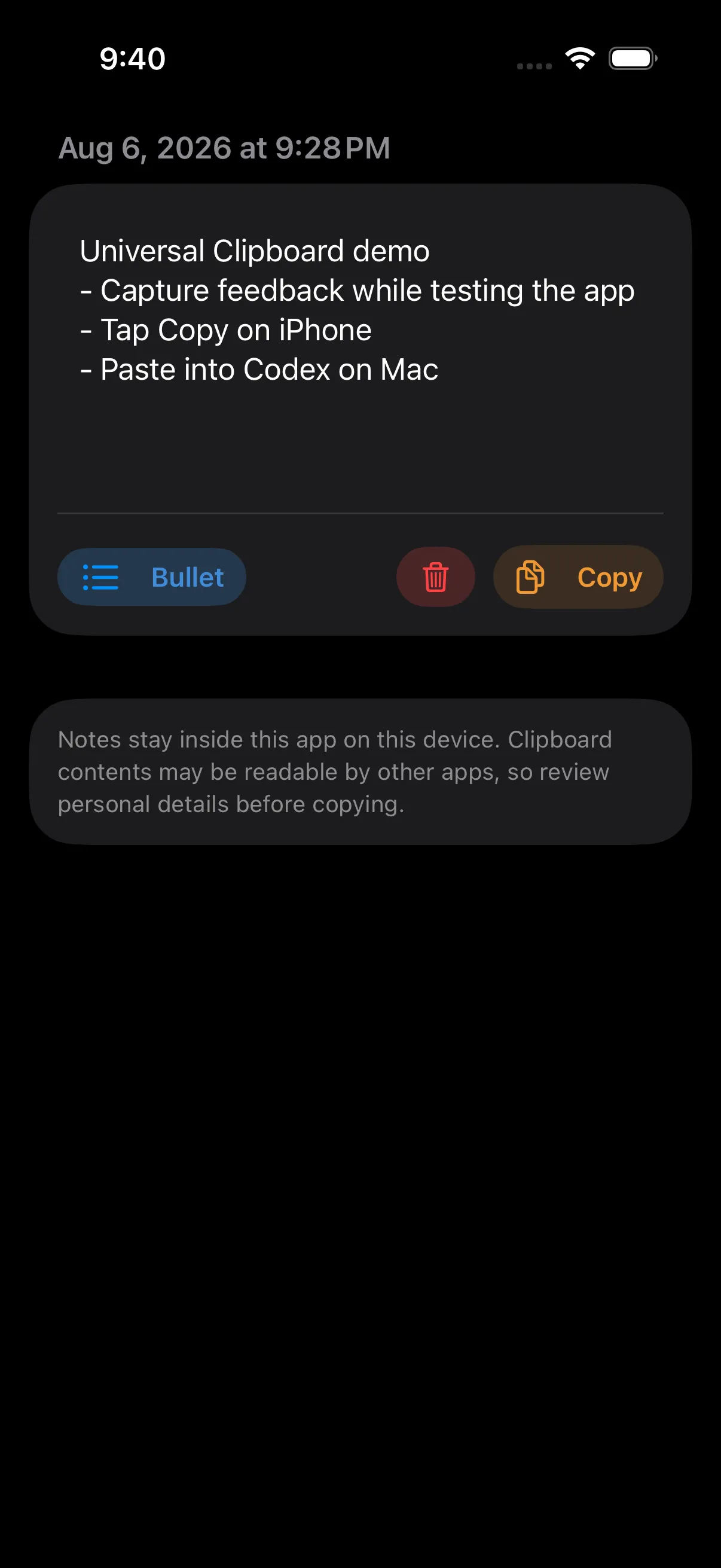
I used to notice a problem, leave the app, write it down in an Obsidian project note, and later copy that note into Claude or Codex. It worked, but it was enough friction that I didn’t always do it.
Now Eric Health and EricWiki (yet another personal app I’ve been developing) have a small feedback area built right into the app. I can write a note right there in the app, while the problem is fresh. Later on, when I’m back at my computer, I tap Copy, move to my Mac, and paste it directly to the coding agent working on that app. The note starts closer to the thing it describes and it reaches the right place with fewer steps so the loop between usage, noticing something, and improving it is shorter.
A few notes for building this in Swift
Here are the lessons I would give another developer, or another coding agent, if they are trying to implement the same thing:
-
Use plain text as the common format. Encode the data as UTF-8 JSON. On iOS,
UIPasteboard.general.string = jsonhas been the most reliable write path. On macOS, use anNSPasteboardItem, include.string, and callwriteObjects. A custom pasteboard type can be useful on Mac, but plain text is the important fallback for Universal Clipboard. -
Wrap the data in a versioned envelope. Include an app identifier, a format version, and the records themselves. Reject data meant for another app, unknown versions, oversized payloads, malformed JSON, and implausible values before touching local data.
struct TransferPayload<Record: Codable>: Codable { let appIdentifier: String let version: Int let records: [Record] } -
Give every record a stable ID. Merge by UUID, not by a name or timestamp. That makes repeated imports safe and prevents duplicate records. Copying the same payload twice should produce the same result as copying it once.
-
Keep copy and paste explicit. Let the user press Copy and Paste instead of reading the clipboard automatically. Preview additions, updates, and especially deletions before applying them. Only show “Copied” after the pasteboard write actually succeeds.
-
Treat the clipboard as transport, not storage. Keep the real data in the app’s normal database or files. Clipboard contents may be visible to other apps, so avoid secrets, warn users when personal data is included, and only paste data from a trusted source.
To be clear, this isn’t the right sync system for every app. Large files, collaboration, and automatic background updates need something more robust. But for small apps used by one person on nearby Apple devices, Universal Clipboard is an unusually useful piece of infrastructure hiding behind an everyday convenience feature.